How to use hlookup in excel in hindi, how to use vlookup in excel between 2 sheets, how to use vlookup, how to use bing ai, how to use xlookup, how to use excel, how to use midjourney, how to use if function in excel, how to print screen, how to edit a pdf,
The HLOOKUP function is an advanced feature in Google Sheets that allows you to search for values in a table or range. It is a horizontal version of the VLOOKUP function, which allows you to search for values in a vertically aligned table. By using HLOOKUP, you can find exact or approximate matches of a specific value in a row or set of rows in a table. In this article, we will explore the various applications of the HLOOKUP function in Google Sheets and how it can be used to simplify your work processes.
Understanding the HLOOKUP Function in Google Sheets
The HLOOKUP function in Google Sheets requires four main arguments: search_key, range, row_index_number, and [is_sorted].
Search_key: This refers to the value you are searching for in the row or set of rows in the table. It can be a number, date, or text string.
Range: This is the range of cells in the table where your search will take place. The format of the range should be a continuous row or set of rows where you want to look for the search_key.
Row_index_number: This is a numeric value that represents the row in your range where the results of your search will be displayed. For example, if your range is A1:E10 and you want the HLOOKUP function to display the result in row 5, you would enter 5 as the row_index_number.
[is_sorted]: This is an optional argument that indicates whether the range is sorted in ascending order. If set to TRUE or omitted, Google Sheets will assume that the range is sorted in ascending order. If set to FALSE, Google Sheets will not assume any sorting order and will search the range in the order that it appears.
Examples of How to Use the HLOOKUP Function in Google Sheets
Now that you have a basic understanding of the HLOOKUP function, let us explore some examples of how it can be used in Google Sheets.
Example 1: Finding Exact Matches
Suppose you have a table that lists the expenses of your business in different categories, such as rent, utilities, and office supplies. You want to calculate the total expense for each category, but you do not want to manually add up the expenses for each category.
You can use the HLOOKUP function to search for the category name in the first row of the table and retrieve the total expense for that category from the second row of the table. In this example, we will assume that the table is located in cells A1:E4 and that the category name we want to search for is "utilities".
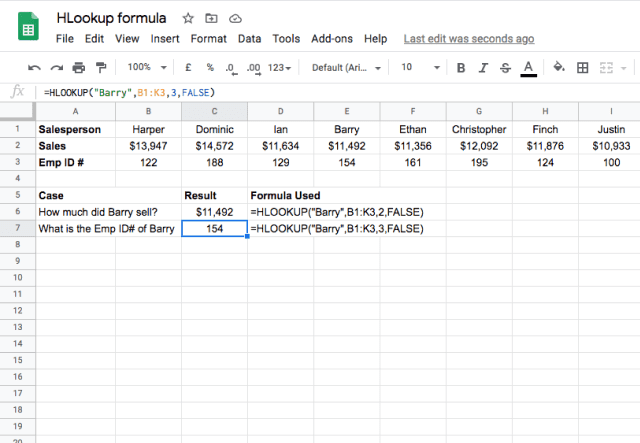
To find the exact total expense for the "utilities" category, we would enter the following formula:
=HLOOKUP("utilities",A1:E4,2,FALSE)
The formula searches for the string "utilities" in the first row of the table and returns the value in the second row of the table that is directly below the cell that contains "utilities". Since we set the is_sorted argument to FALSE, Google Sheets will not assume any sorting order and will search for an exact match of the search_key. The result of this formula would be $400, which is the total expense for the "utilities" category.
Example 2: Finding Approximate Matches
Suppose you have a table that lists the commission rates for a sales team based on their sales performance. You want to determine the commission rate for a salesperson who has sold $15,000 worth of products.
You can use the HLOOKUP function to find the approximate commission rate for the salesperson by searching for the range of sales values that includes $15,000. In this example, we will assume that the table is located in cells A1:G5 and that the sales value we want to search for is $15,000.

To find the approximate commission rate for a salesperson who has sold $15,000 worth of products, we would enter the following formula:
=HLOOKUP(15000,A1:G5,5,TRUE)
The formula searches for the value 15000 in the first row of the table and returns the value in the fifth row of the table that is directly below the cell that contains the closest match to 15000. Since we set the is_sorted argument to TRUE, Google Sheets will assume that the range is sorted in ascending order and will search for an approximate match of the search_key. The result of this formula would be 8.5%, which is the commission rate for a salesperson who has sold between $10,000 and $19,999 worth of products.
Conclusion
The HLOOKUP function in Google Sheets is a powerful tool that can help you to search for values in a horizontal range or table. It can be used to find exact or approximate matches of a search_key and display the results in a specific row or set of rows. By using the HLOOKUP function, you can simplify your work processes and avoid the need to manually search through large tables or ranges. We hope that this article has provided you with a better understanding of the HLOOKUP function and its applications in Google Sheets.


